

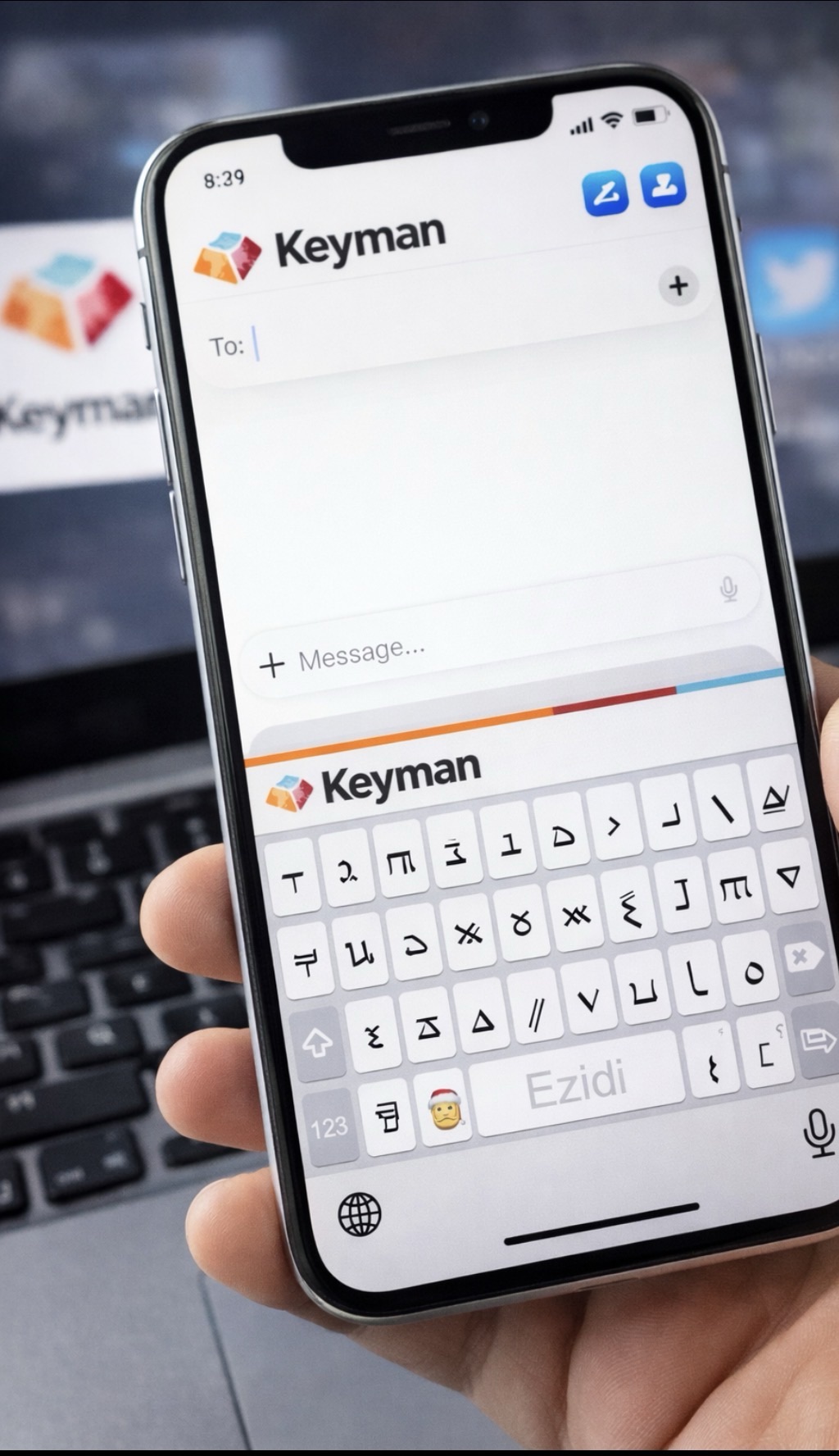
Writing in Ezdiki using the Ezidi script is now possible on modern smartphones. By installing the Keyman keyboard app, you can easily type the Ezidi script in messages, social media, notes, and other writing apps.
Keyman supports many languages and works on both iPhone and Android phones, making it a practical solution for anyone who wants to write Ezdiki using the Ezidi script.
Below is a simple numbered guide that explains how to install and activate the keyboard.
Step by step guide
1. Download the Keyman App
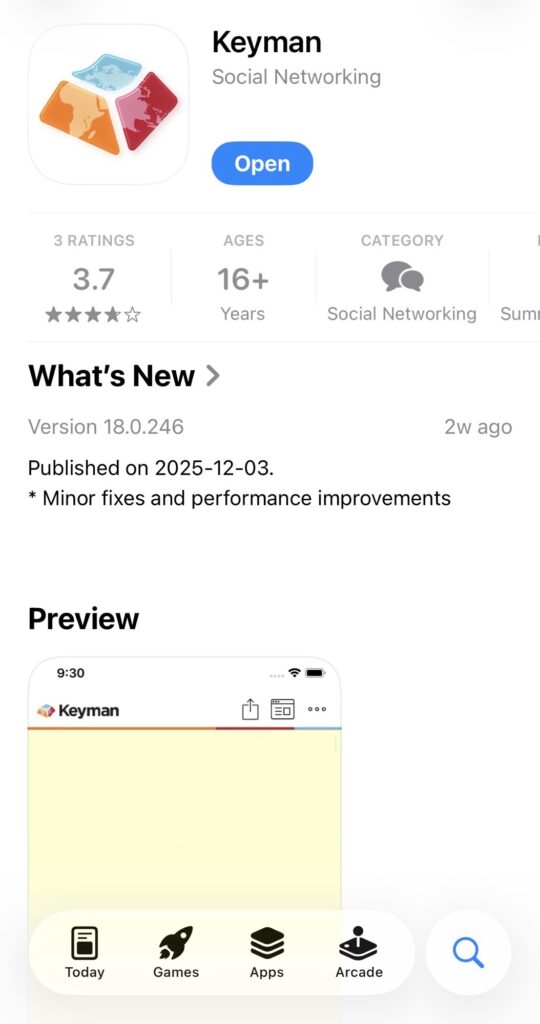
Go to your phone’s app store (App Store or Google Play), search for Keyman, and install the app on your phone.
2. Open the App and Start the Setup
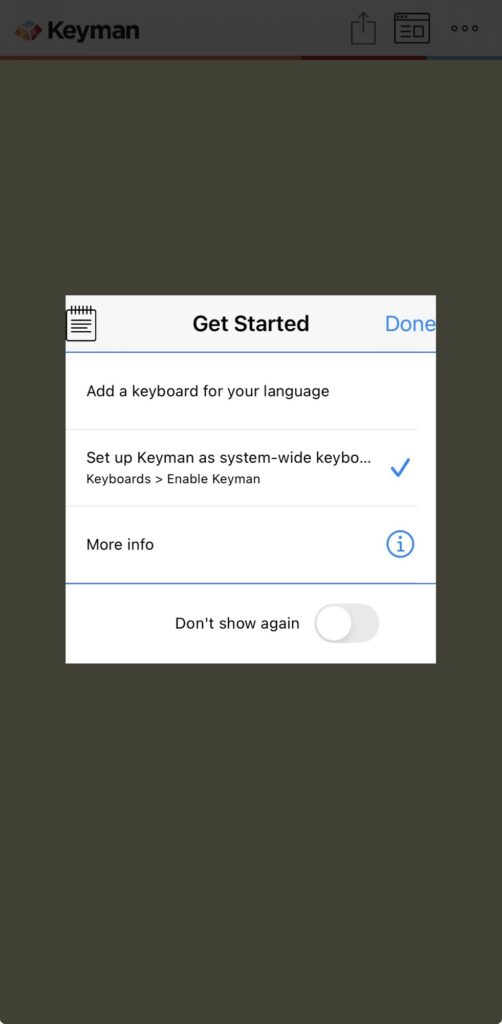
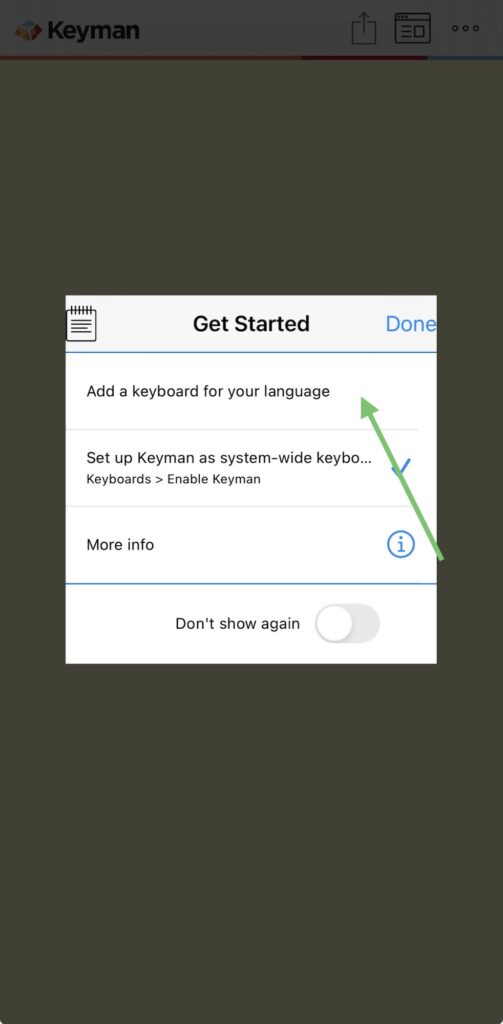
After downloading the app, open it. When you launch Keyman for the first time, the app will guide you through the setup process. You will need to add the Ezdiki keyboard and enable the Keyman keyboard in your phone’s settings.
3. Download the Ezidi Keyboard
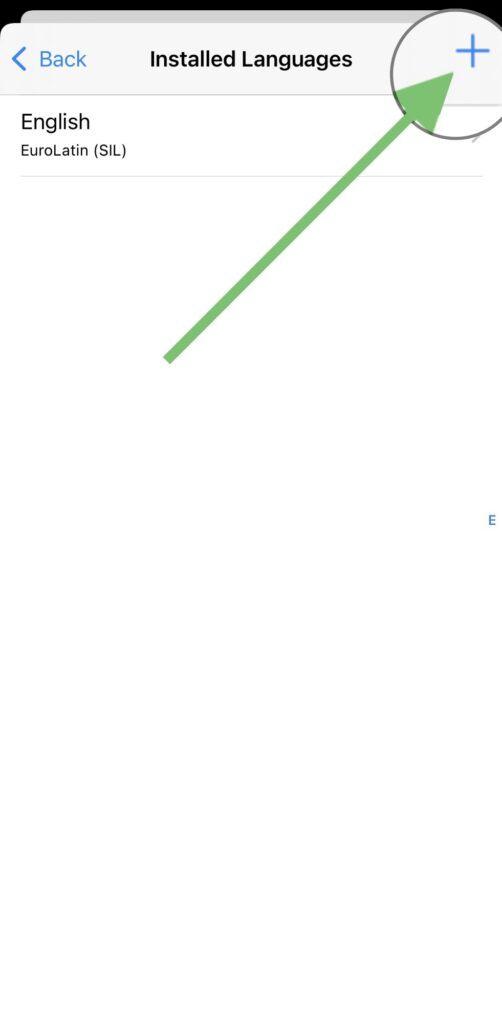
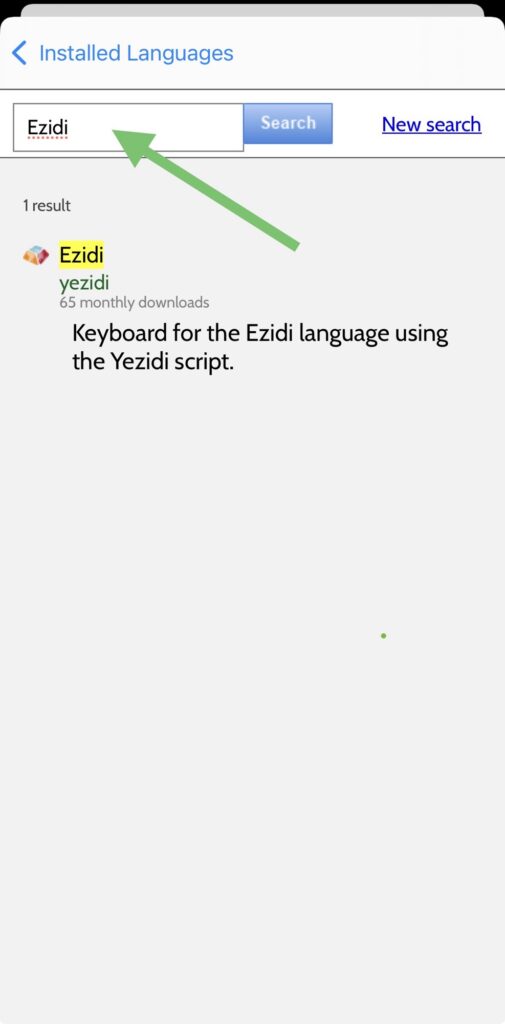
Inside the app, click on “Add a keyboard for your language”, then click on the “+” sign and search for “Ezidi” in the list of languages.
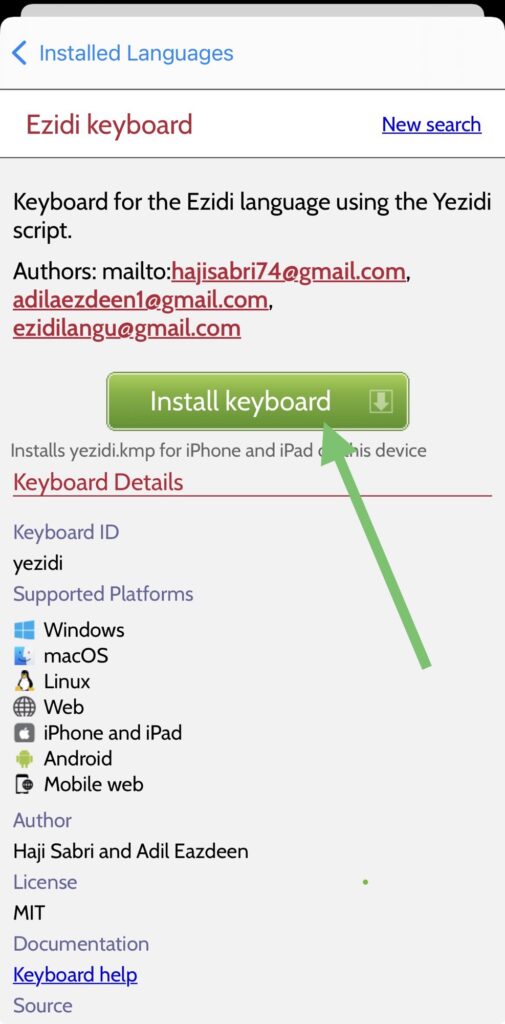
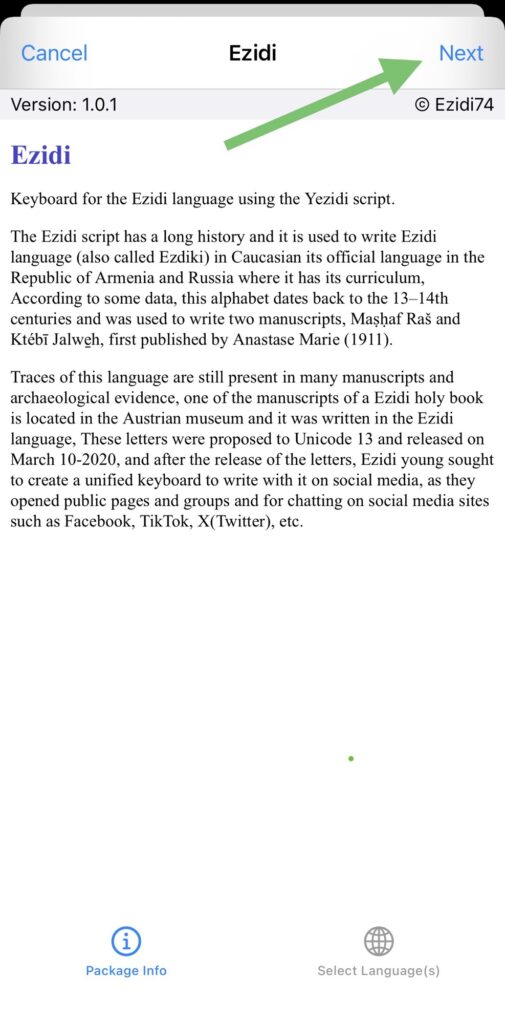
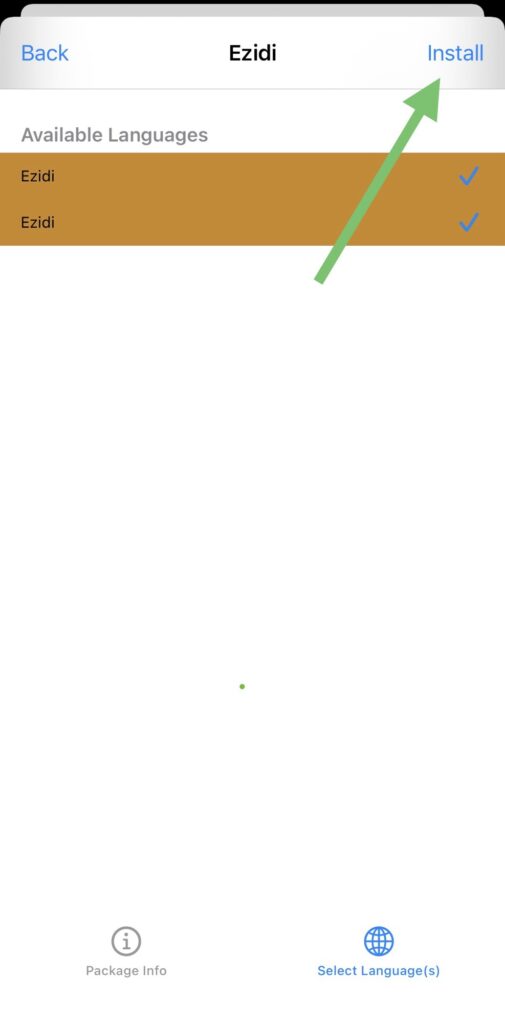
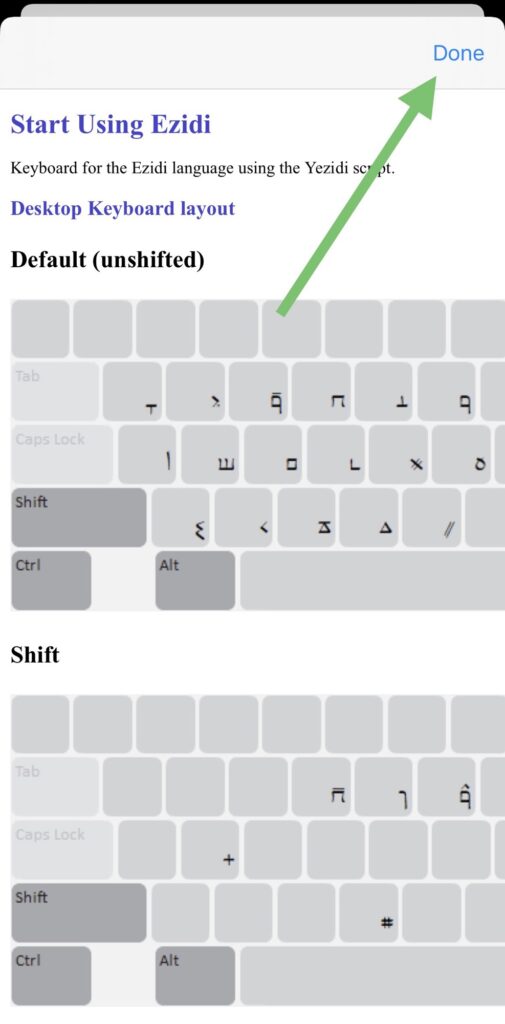
Download the Ezidi keyboard and tap Next to continue the installation.
4. Open Your Phone’s Keyboard Settings
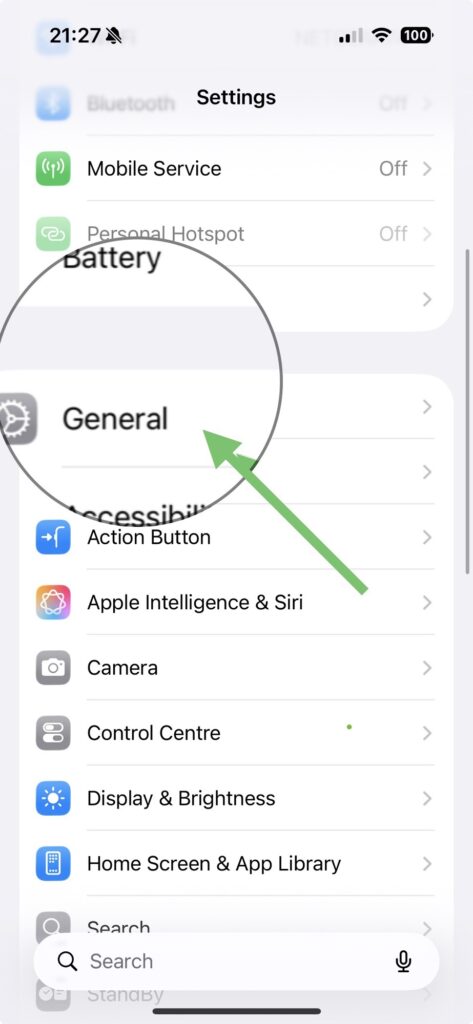
Go to Settings on your phone.
Tap General, then tap Keyboard.

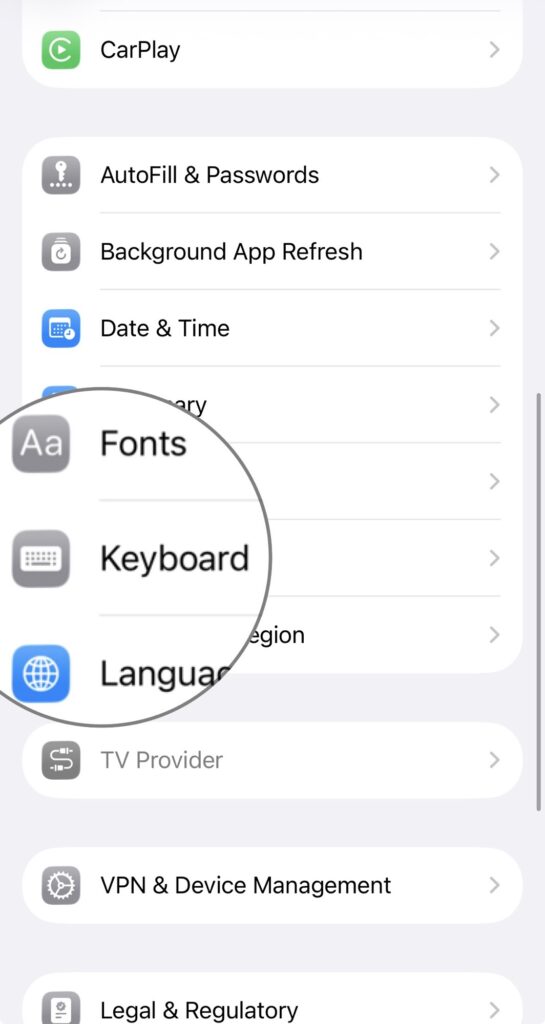
5. Add the Keyman Keyboard
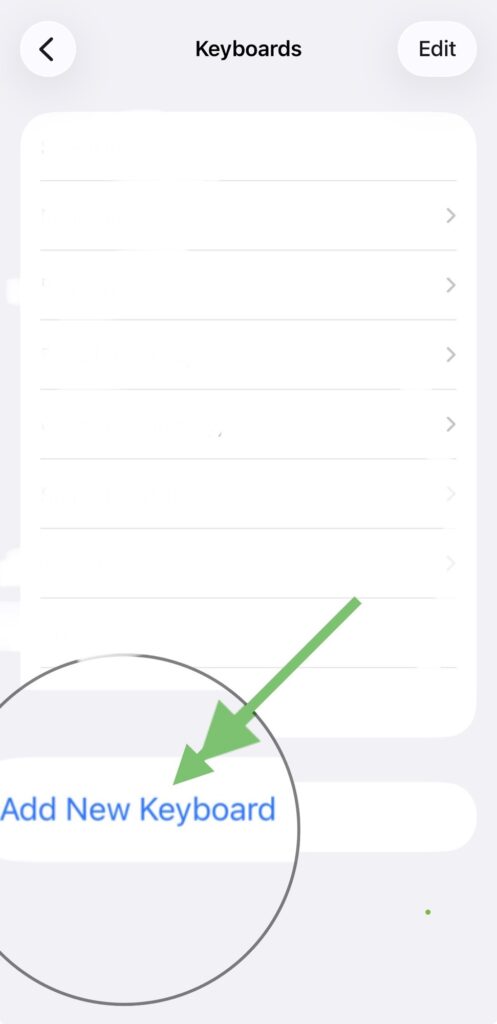
Tap Keyboards, then select Add New Keyboard.
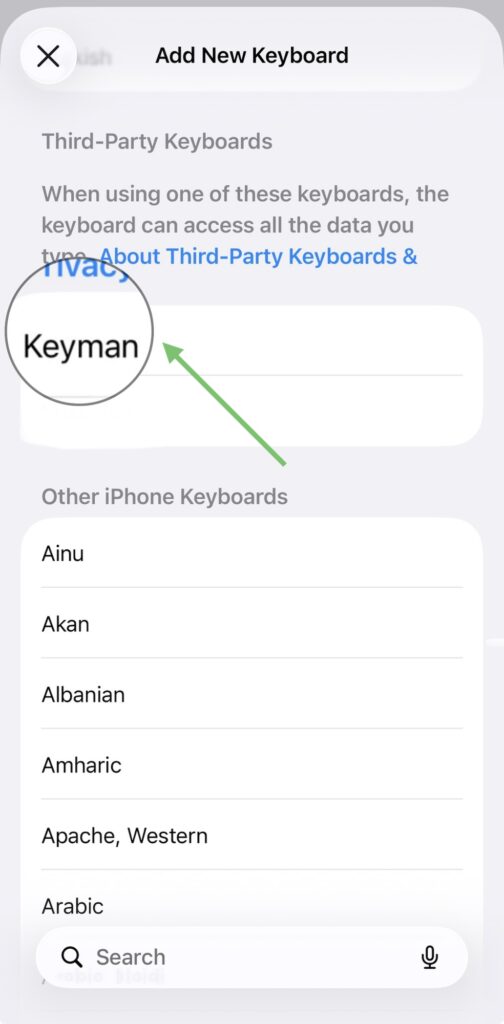
Scroll down to Third-Party Keyboards and choose Keyman.
6. Enable Full Access
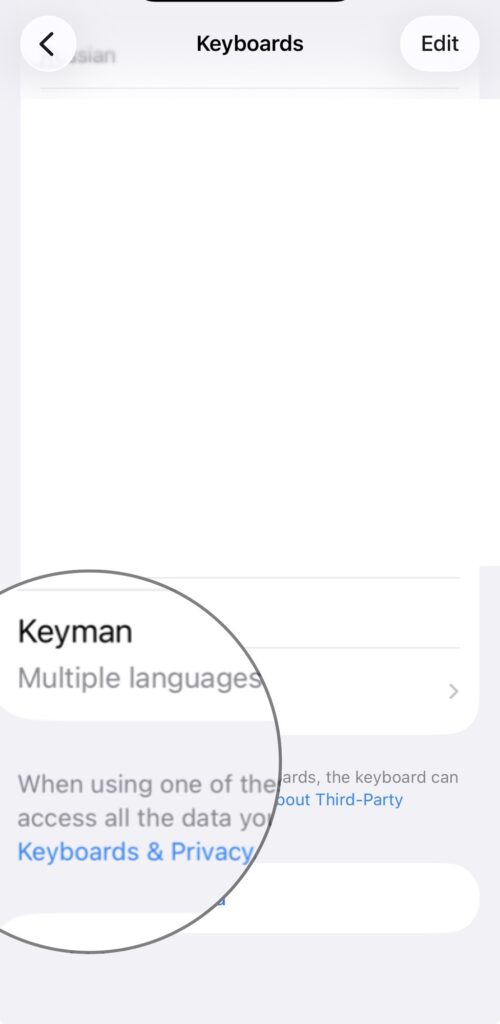
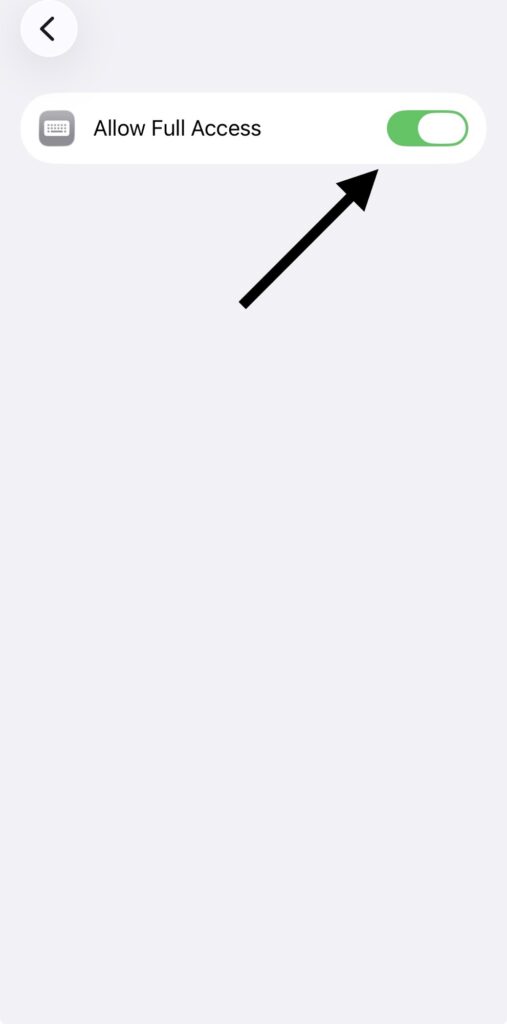
In your list of keyboards, tap Keyman and enable Allow Full Access so the keyboard can work properly.
7. Select the Keyboard in a Writing App
Open any app where you can type, such as Messages, Notes, WhatsApp, or social media.
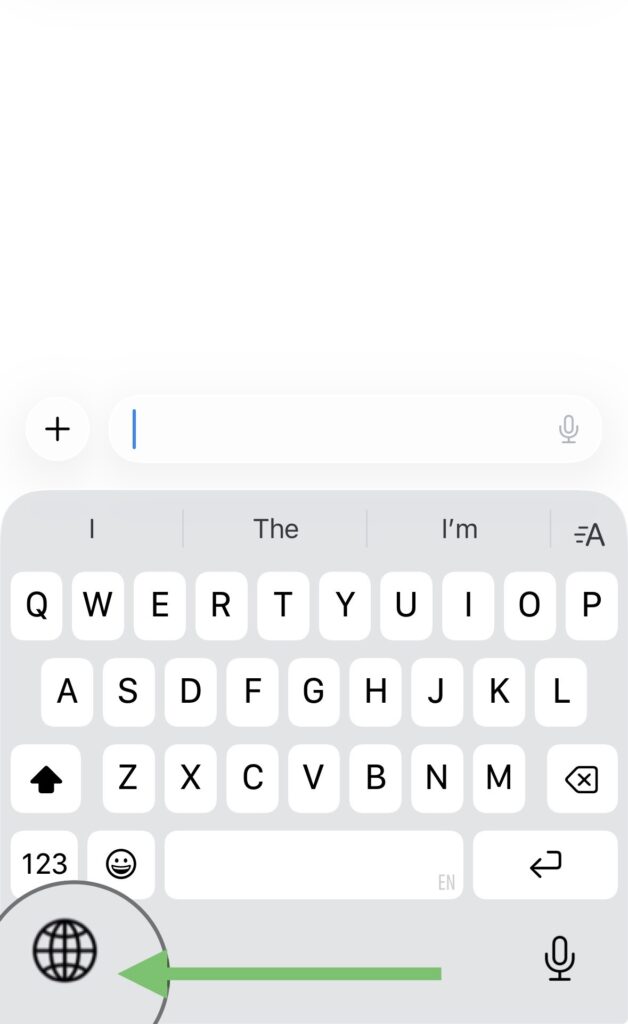
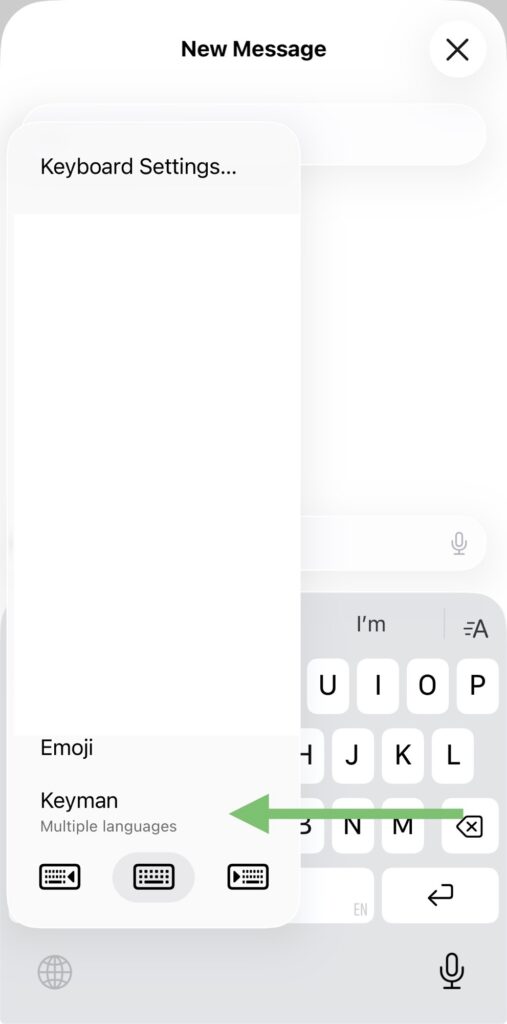
Tap the language/globe button on the keyboard and select Keyman.
8. Choose the Ezidi Language
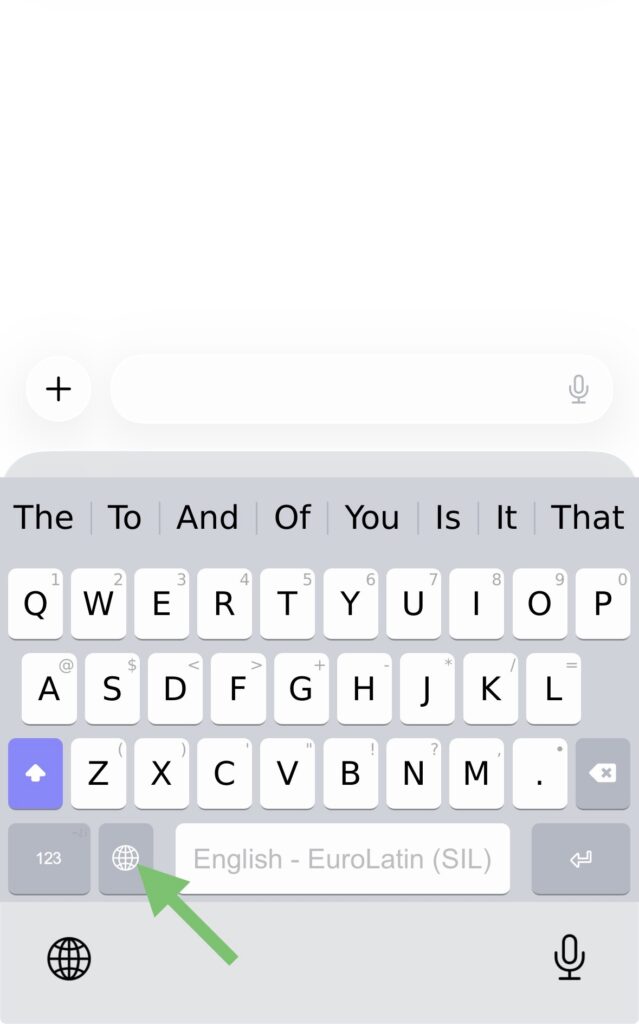
If the Keyman keyboard appears in English or another language, tap the language button within the keyboard and select Ezidi.
You are now ready to write in Ezdiki using the Ezidi script on your phone.
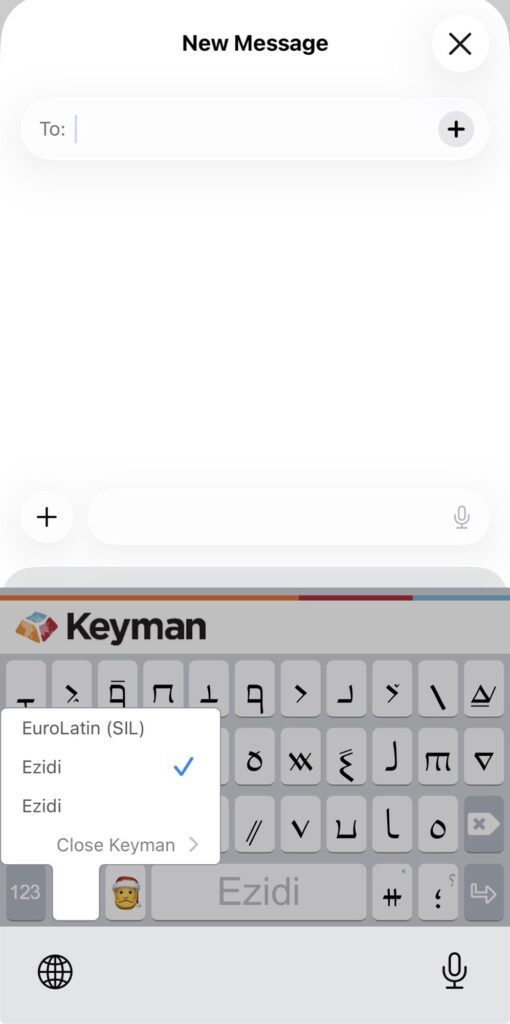
Once installed, the keyboard can be used in any app where typing is possible, making it easier to write and share Ezdiki in everyday digital communication.